Connect to Raspberry Pi over USB
How to set up a plan B to connect to your Raspberry Pi with a USB cable and a bit of hacking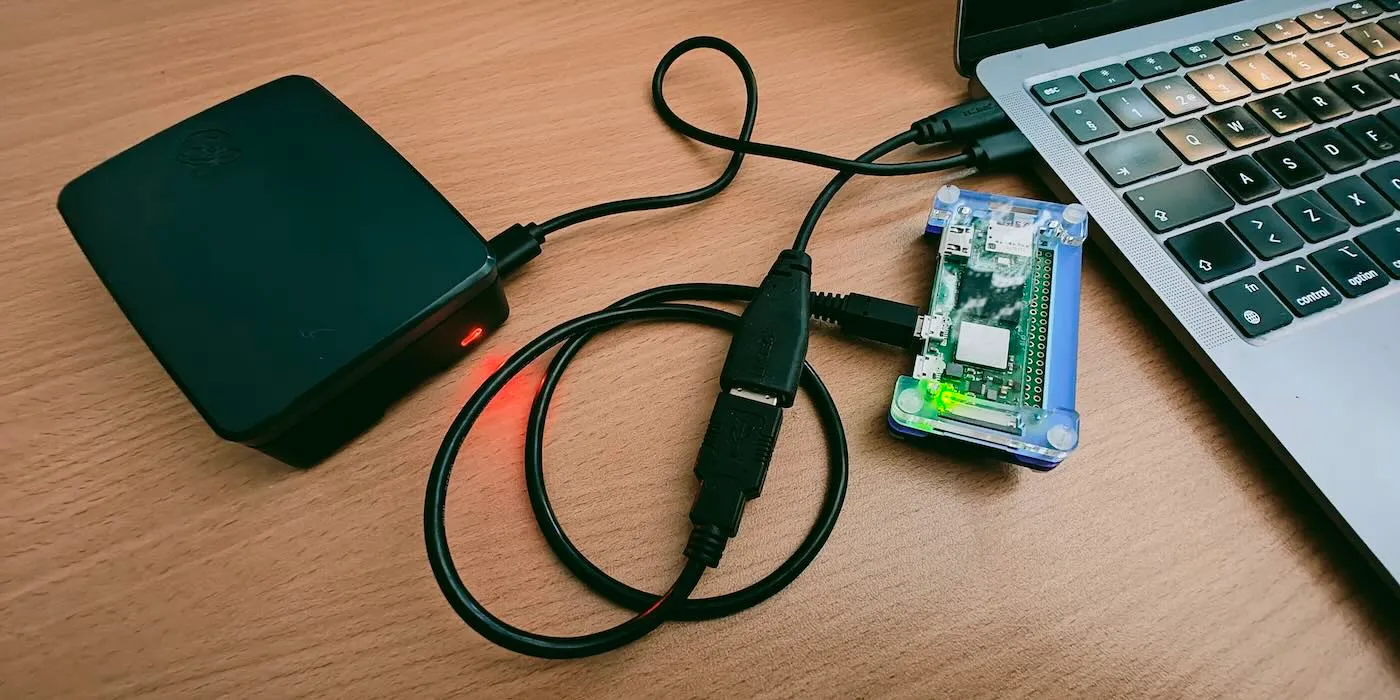
It’s possible to use your Raspberry Pi’s USB port to connect to it as if it was a regular network host. This should work for recent Pi models with either Micro-USB or USB-C ports. I’ve tested these configurations with models Raspberry Pi Zero 2 and Raspberry Pi 4 B running Raspberry Pi OS 12 (Bookworm), using a MacBook Air M1.
After readying the Raspberry Pi for USB connectivity (as described below), and connecting the cable, the Ethernet connection should be established automatically on a macOS computer. I haven’t tried with other operating systems, but I’m sure they shouldn’t be too hard to figure out.
Modify Raspberry Pi OS boot files
Logged on to the Raspberry Pi you can find and edit the files as root under /boot/firmware/. Alternatively, you can mount the SD card on your computer and find them in the volume root.
# Add to config.txt, append at the end under "[all]"

dtoverlay=dwc2
Here, the values for g_ether.host_addr and g_ether.dev_addr are random, and you probably want to modify them a bit for each device. The fixed and unique addresses ensure the device is recognized again by others between boots.
# Add to cmdline.txt, append after "rootwait":

modules-load=dwc2,g_ether g_ether.host_addr=26:49:c5:13:e8:9b g_ether.dev_addr=26:49:c5:13:e8:9f
Set up Raspberry Pi OS networking
The Raspberry Pi’s networking via usb0 still needs to be set up. Pick a new IP (within subnet) for each new Pi you’re configuring, otherwise ssh may refuse to connect due to fingerprint mismatches.
You can also use other tools like Network Manager instead of ifconfig.
# Run to configure Raspberry Pi's networking via usb0:

ifconfig usb0 169.254.1.1/16

# OR Network Manager CLI command:
# nmcli connection <your-connection> up
To persist the configuration over boots, you can add the approppriate command to bring up the connection to /etc/rc.local.
Try connecting
On macOS, when you plug in the USB cable you can go to System Settings -> Network where you should eventually see an RNDIS/Ethernet Gadget service appear and then become active. The connection may take a while to initialize.
When the connection is active, the host is available to you normally at the given IP. With ssh, use a proper user and the IP that was configured by ifconfig in the previous step:
# To connect from your machine ("pi" is the default user):

ssh pi@169.254.1.1
Shoot troubles
In my experience the connection over USB may be a bit unstable and can suddenly die, so it’s probably not the best choice for your primary connection if Ethernet cables or Wi-Fi are available.
Troubleshooting tips:
- If
sshdoesn’t seem to connect, try other cables you have nearby – the thicker the better - If you’re using a USB hub, try connecting directly (may require an adapter)
- Try disabling IPv6 for the connection to improve stability